Monday, June 29, 2009

Google Domain selling: Why buy here if they are not hosting your site

Recently, I was thinking of developing of a website. So I jumped the boat and drove in 5th gear to google website as my 80% time is spend on google and registered a website with them without finding out that google won't host my website if I have to make it efor commercial purpose (Not talking about transferring for blogging purpose. So why should someone still register a domain name with Google.

Answer is simple. You register with Google and they offer you Google Aps with mail, document, calender facilities. These are great value for 10$ bill (provided google don't raise the cost), so go ahead register your domain with website. Google tries to make it easy to transfer the hosting facility by tying up with Godday and eNom. It is easy to transfer the hosting feature to these service. If you want to know how to transfer the domain to Godaddy read this article. Domain transfer

Signature

Twit This!

Monday, June 29, 2009

How to Transfer a Domain Name Registered With Google to a GoDaddy Account

Well I was searching for information on how to transfer domain from Google to Godaddy, I thought it would be easy as we signed godaddy while purchasing a domain name. But trust me friends, its not that easy. Here is a very reliable source I came across. Christian Rogers has done a great job in explaining the process. He explain in step by step how to do this.

Go to his orginal source, he has explained everything there. [Click Here]

Just wanted to share his information for you guys.

Signature

Twit This!

Embeding PHP file into your blog

Just now I had to search everywhere on the web how to imbed PHP file onto my blog. Anyway it took me 1 hour to figure out how to embed PHP file. So here's the simple trick. Remember that PHP file are run on the server side.

<object width="425" height="344" type="text/html" data="URL.php"></object>

I have put the width and height according to the way I want to display on the page. but you can change according to your needs.  Check out this site where I have embedded it.[Here]

This works only in Mozilla FireFox. If anyone know more about it, please feel free to share.

Signature

Twit This!

Embeded Comment box

First you have to signed in to http://draft.blogger.com and be careful. it’s not blogger.com
it is go to draft.blogger.com. You can sign with your google mail account. Next make sure to check the box beside Make Blogger in Draft my default dashboard. on top of the page.

Then login to you blog, go to Edit--> Layout--> edit HTML. Check the widget box

<p class=’comment-footer’>
<a expr:
href=’data:post.addCommentUrl’
expr:onclick=’data:post.addCommentOnclick’>
<data:postCommentMsg/></a>
</p>
</b:if>

and replace them with

<p class=’comment-footer’>
<b:if cond=’data:post.embedCommentForm’>
<b:include data=’post’ name=’comment-form’/>
<b:else/> <b:if cond=’data:post.allowComments’>
<a expr:
href=’data:post.addCommentUrl’
expr:onclick=’data:post.addCommentOnclick’>
<data:postCommentMsg/></a>
</b:if> </b:if> </p> </b:if>

No go back to Draft.blogger.com and go to setting, comment and check box


The embedded comment form can not be used if you have Post Pages disabled.


And Save. Your done.

Signature

Twit This!

Saturday, June 27, 2009

How to build traffic to your website or blog.

How to build traffic to your website or blog.

Every blogger dream that people come and read their blog. But this is not possible. Still some blog are able to catch people attention. How they are able to do so. I am going to write some of the tips, I follow.

No method is perfect unless your blog is the best in the market. For that you have to write something that everyone wants to read. Well not everyone can be Super Blogger but you can build a steady traffic to you website. This is how you can do.


The Key Word: The first thing is your content of the blog and tag words or key word. When ever you write something about your blog, always remember to tag your key word from your blog. For example, when you write about your trip to Florida, your key word would be florida, trip, vacation, Disney, etc.


Meta-Tag: When you have your blog designed, add few meta-tag in the HTML. Chose those meta-tag word which explain your blog. For example, I write about random thoughts, so I will few world which describe my blog subject in the meta tag. If you use blogger, you can add meta-tag yourself. Click here to see how you can add meta-tag in your blog.


Yahoo! Answers, Google Groups, Craigslist, are good place to post about your website. For example, ask and answer question on yahoo and mention your blog. You can do the same with Google group.


Submit a story to Digg that links to an article on your site.


Post your blog on Twitter. If you don’t have a follower, build follower and follow other. This way you can share you blog to a wider section.


Link to other blogs from your blog. Many bloggers also track who is linking to them or where their traffic comes from, so linking to them is an easy way to get noticed by some of them.


Technorati is another good place to tag your blog


List your blog at best blog directories.


Search SEO on google and you can find a lot of resources on how to increase traffic for your blog.

Signature

Twit This!

8 Step to consider for web design

Steps to consider before you start for your web-design


1. Get Advice before you step out

The foremost important thing before you venture out in any particular business is full assessment of the business. Do not rush into things, you hear from the first person about building website. He may be right but you have to do the research before you settle down for someone. Research and talk to as many people as possible.


2. Define your objective for Website

Define you objective for the website you want to develop. Who are your target audience? What you are trying to sell or what kind of service you are thinking to offer? Set a clear goal for yourself and for the website development team. Discuss with your team about your objective and see how they can help you. Remember it’s always good to have positive feedback from your team who will be developing your website. List your objective like 20% more sale or 20% more reader to your website.


3. Write a project Detail

Write in detail about your project. Writing project detail can help you save time and keep your goal. If you are individual or a company, writing always helps keep focused in long term.


4. Looking for Potential Web Developer individual or company

In the world of internet, your web development can be done from any part of the world. The only thing you should worry about is the price and quality of the work. In most of the developing countries you can get good quality at decent cost value. Make sure you sign a Non-Discloser Agreement with vendor. This is very important.

There are few website such as www.guru.com, www.rentacoder.com where you can find possible vendor for your web development.


5. Selecting your preferred Vendor

Selecting your preferred vendor is as important as selecting or conceiving your project. You have to find the right team to do your job as you have initially thought about it. Right vendor will not only able to do the job but will also help you to improve upon it. After all a right vendor will think that you will retain them for future work. Build your relationship with vendor.


6. Agree to specification and work plan

Once you have selected a preferred vendor, make sure that you stick with the specification and work plan. We have seen that many times, we go off the plan or there is escalation in the work and budget. If you have a limited budget, make sure that your vendor stick with the work plan. If you have to sign a agreement with vendor, sign before you start working on the project You can find lot of resource on the web for the language.


7. Monitor your work

When you start working on your project, you should set a timeline for the entire project. May be you have set one month or three month for the entire project to go live. Monitor your work all the time.


8. Maintain and develop your site

Once you develop your website, it is important to keep it update with latest information. Make sure that you update it regularly. If you are not a webmaster for your website, it is good idea to have someone who can look at the website from time to time.

Signature

Twit This!

Monday, June 22, 2009

How to put google search on your blog and where

Here's how you should do.

Customize everything as google say till you get the code. Once you have the code, put the script somewhere in the right-top corner as we all tend to look in the right corner.

Once you have put the code there, the second set of code you have put inside the HTML section of your template.

I perfer to show the result on top of my blog-page. So I go to EDIT HTML, (always back-up template), look for

<div id='outer-wrapper'><div id='wrap2'>

Just above this code, I put my custome code from google.

Save and do some search, if you don't like it, you can try other place. Let me know if you have any question

Signature

Twit This!

Building web-traffic for your blog

I am new to the blogging community. I just joined for the sake of friend who would keep pestering me about their blogsite and its content. They would force me to go and visit their blogsite once in awhile (I agree, I never told them that they forced me, otherwise I would have been crucified the next day, may be my boss would have fired me when he would come to know that I don’t visit his blog site regularly). Ok enough of anecdote and I want to confess that once I started writing my own Blogs on Random topic, I have started enjoying it. So what the next phase of the Blog. That brings me to the next topic.


What should I write so that I can enjoy and my unknown reader enjoy too. Would I be interested in writing about war and my reader would be craving for peace. Well I can write about war but it will only me who will be reading the blog (rest assured, they will be ditching me next moment). So this brings us to a very important thing. The content of the blog. In my view, content is the most important thing to keep the reader coming back to you. Remember watch LOTR over and over again because the content of the moving and story telling was most fascinating. Other example I can give you is about Harry Potter book. Why do people stand in long queue so that they can grab first peace of the book? It’s the content of the material. So number 1 goes to the content of the blog.


Virtually you have to write something that interest most of the targeted audience. Your audience may range from 10-year kid to 80-year grandpa. So you have to keep their interest in your blog alive. Another thing about content is that you have to worry about time-frame. Why Shakespeare is still read in 21st or 22nd century? What ever he wrote is timeless. His content surpasses time-frame with ease. I don’t want to say that everyone become Shakespeare (or they could if they had the capabilities), but what I am trying to say is that write something which can be still relevant say 30 year from now (when I am 70 year old, if I am alive).


The second most important criteria is the original content. In the world of electronic media, it is very easy to copy from somewhere and put things in your or mine blog. As a starter, it sounds very easy and may be you will be able to bring some reader to your blog. But if you look within self, I am sure you will know the answer. I am not even going to there to answer for you but many of us can do it. If you like someone content, copy the main idea, paraphrase them and write on your blog with a definitely reference to the original source. Remember writing master theses in school and mentioning reference for their work.


So write something of your idea. Let me honest with you, even this article, the one you are reading write know is not my idea, I searched on the google how to build traffic for blog, read a lot about them, but I was never happy or content with their entire thing, so I decided to write my own ethic code. I call these as ethic code. Now coming back to topic, what should I write about? Almost everything is written by someone. Nothing is left for me. How should I do? Let me tell you that there are many things you can still write about. Perhaps try to write your experience reading Harry Potter or following someone on twitter or better you can write about how you lost money listening to someone on CNBC (I won’t name him as he is more famous than me). So virtually the list is endless and you will be winner one day. So the number 2 position goes to content of the blog.


Understand that your readers are just like you and me. I was not a good reader in school and I used bunk the class or just dozed in the last bench. Now the role has reversed, you are the book and your readers are student. So what you are going to write that your readers don’t fall off or go away to some other green pasture. Write something which interests your targeted audience. Don’t treat you audience like a computer machine or a scanner. Treat them as human and you will be reward. Sometime follow some unconventional method of telling things to your reader. May be follow your heart to tell what you think about something. No one is going to come and kill you. Just mention at the bottom of the blog that this is your thought and no one should get influenced by it (just to cover your skin). Have a feeling in your word. Write few and small but write something which make your reader to come again and again to your blog to see what happened next. May be try to write a story online. But the bottom line is that your reader should be able to associate with you.


The thing I have always looked at someone blog is to try find out who is the person behind those words. Try to keep your reader informed about who you are and why you like writing blog and what are you trying to do with your blog (Are you trying to change the world or are you trying to make career by writing blog. The fans or the blog reader are your real customer. So try to be clean with your customer. Tell them a short story about yourself, who you are, what you do and what are things that interest you. It’s always good to know about someone whom I like to read. I try to associate myself with the author as much as possible so that I can get a sense of belongingness.


There are two type of blog, one is professional and the other is personal. If you have read this thing, what do you feel about it? Definitely it is not professional blog, it is more of personal. Even most the sentence structured would be not able to pass the word processing of correct English. So who cares? I write with my heart out. So if my readers like it, he will ask me to keep this thing like this. So take your plunge and start pouring in your thoughts and let me know. Post your blogsite the comment section and I will come and read it. Or better email me.


(Note: Technical side I will post too)

© Lost in Random World


My email id is lostinrandomworld@gmail.com

Signature

Twit This!

How to add navigation bar in your Blog

Adding Navigation just like a professional website always look nice. So I decided to share this information with you all. The first thing you need do is able add an page-element into your header section.

By default, in most template you will be not able to add a page element. So first we need to fix this.

This is how we are able to do it.

Go to edit HTML page and check Expand Widget Templates box. Now look for
<b:section class="'header'" id="'header'" maxwidgets="'1'" showaddelement="'no'">

Change maxwidgets="'1'" to 3 and showaddelement to 'yes' from 'no'

Once you do this save and then go to layout. Now you will be able to add an element.

Add an Java/HTML element. Don't add any thing in tittle


In the content box, add the following code. Change as you like. Add 4 or 5 in one row. If you have more than 5 link, add next in another row by including between <p> </p>

<font
size="4"><a href="URL/" target="_blank"><span style="font-weight:bold;">URL1 |</span></a>
</font>

<font
size="4">
<a href="URL2" target="_blank"><span style="font-weight:bold;">URL2 |<span style="font-weight:bold;"></span></span></a>
</font>
<font
size="4">
<a href="URL3" target="_blank"><span style="font-weight:bold;">URL3 |</span> </a>
</font>
<font
size="4">
<a href="URL4" target="_blank"><span style="font-weight:bold;">URL4 |</span></a>
</font>
<font
size="4">
<a href="URL5" target="_blank"><span style="font-weight:bold;">URL5</span></a>
</font>
<p><font
size="4">
<a href="URL6" target="_blank"><span style="font-weight:bold;">URL6


Leave a comment if you need help or email lostinrandomworld@gmail.com

Signature

Twit This!

Adding Signature to your blog

After you create your signature, you can either download the signature and host to photobucket etc or you can use the link given by the website.

So we are all ready. So here we go.

1. As usual, go to Edit HTML section from layout and make a back-up of your template. This is must as you may by-mistake change something else. I do.

2. Look into code and find for <data:post.body/> (using Cntrl +F).

3. Just below this code paste the following code

<!-- Signature Button BEGIN -->
<p>
<img alt='Signature' src='URL Signature'/>
</p>
<!-- Signature Button END -->

Save and enjoy you signature

Signature

Twit This!

Changing Background Color

Is there a way to change the background color of my blog. I have seen so many on myspace. So I was looking the code this morning and thinking, well give it a try.

So here I come up with few pros and cons before I show you how to change the color.

Pros: It looks more personal and you can customize with what you like. You can display your image or your pet or the butter fly. It looks great. It give more satisfying feeling and make it more adventurous.

Cons: Once you change the background image, you have to adjust the color of the font, txt size etc. When I was trying this, I could barely read the text.

But I am going to show you this simple thing

1. As usual, go to Edit HTML section from layout and make a back-up of your template. This is must as you may by-mistake change something else. I do.
2. Look into code and find for body (using Cntrl +F), hit two time, and you will be there and the code will look like this.

body {
background:$bgcolor;

margin:0;
color:$textcolor;
font:x-small Georgia Serif;
font-size/* */:/**/small;
font-size: /**/small;
text-align: center;
}

3. Now change the line of background:$bgcolor; with

url("Your Image URL");

if you want to repeat the image make it like

url("Your Image URL")repeat;

So it will look like

body {
background:url("Your Image URL")repeat;

margin:0;
color:$textcolor;
font:x-small Georgia Serif;
font-size/* */:/**/small;
font-size: /**/small;
text-align: center;
}


Save and make sure that you can read the text. If you like it keep it or change to another txt. though you have to host your image as usual at some place.

Signature

Twit This!

Sunday, June 21, 2009

How do I know some one is following me on twitter?

Well well, I am getting the bug which till now I have tried my best to avoid. So I joined twitter and like everybody else, I wanted to I wanted to follow everyone and everyone wants to follow me.

So what I did is I started with one of my friend and went to his follower. Then I started adding some of his friend to follow him. I was expecting some people to follow me too. But I build a list of people whom I am following but few are following me. So I decided to pull out the plug on most of these people. So I do it.

Here's a simple way to do it.
1. First go to the person "X" profile.
2. On the right hand side if you see "Actions: message username" then that user is following you.

If not, than the person is not following you. So you can get rid of them.

There are many people who have developed small API code for this and put on the web for other's to use it.

Here's the one I use sometime (sorry, I find the first one simple and easy).

http://following.reallyneatapps.com/

Signature

Twit This!

Adding TweetThis to your blog.

After reading some blogs, I saw that I should add this useful button on my blog and share it with people too as I like bloggers to come to my page for tips and suggestions and what they are looking for.

So here’s the first way to add this Tweetthis Button at the bottom of the post

1. On your Blogger Dashboard, click the Layout link for the blog you want to add the button to.

2. At the top of the Layout page, click the link for Edit HTML.

3. Where it says "Backup/Restore Template", click the link that says "Download Full Template" and save the .xml file to your hard drive. This file will help you restore your template, in case anything goes wrong.

4. In the "Edit Template" section, check the box at the top right that says "Expand Widget Templates".

5. Use your browser's search function to find this line:
<data:post.body/>
6. Below this post this piece of code as shown below.

6. Below this post this piece of code as shown below.
<!-- TwitThis Button BEGIN -->
<p>
<a expr:href='&quot;http://twitthis.com/twit?url=&quot; + data:post.url + &quot;&amp;title=&quot; + data:post.title'><img src='http://i580.photobucket.com/albums/ss247/Lostinrandomworld/teewthis.png'/>Twit This!</a> </p>

<!-- TwitThis Button END -->


Example


7. Save this and you are done. You will see something like this at the bottom of each post.


Example


Signature

Twit This!

Saturday, June 20, 2009

How to create Favicon Icon for your Blog

It is very easy to put Favicon into your blooger URL. Follow the simple step.

1. Upload your image to some photoserver such as photobucket.

2. Go to Edit HTL and look for </head> tag

3. Just before this </head> put your code here

<link href="'YOUR URL" rel="'shortcut icon'/">


eg:

<link href='http://i580.photobucket.com/albums/ss247/Lostinrandomworld/politicians.jpg' rel='shortcut icon'/>

Signature

Twit This!

Add This

I was recently Looking at some of the blog and they had this nice button "Add This" to bookmark the page or to post or print, email etc. I keep adding some of the blog I frequently visit to my book mark and favorite . So I decided to see if I can add this to my blog. It was simple process. I will show you how to do it.

If you go to the right corner of my blog, you will see "Add This" button. Just keep the pointer at it and it will show you some of the option. At the bottom of the option, you will see "What is this"

Clicking this will take you the widget page where you can add in your blog or webpage.

This is that simple.

Or you can go to their webpage directly [Here]

Enjoy!!!!!!!!

Signature

Twit This!

Thursday, June 18, 2009

Changing Color and Font Size of the blog

Now with the new template, Changing color and font size have become super easy. All you have to do is go to Dashboard and to the layout page for that particular blog. The second tab after the page element is font and color. You can change setting according to your liking.

Enjoy!!!!!

Signature

Twit This!

Adding Meta Tags to Blogger for Better SEO

Ever wander how people find your blog? Blogger are able to place some meta keyword in their html so that when ever you are search for those key word, if the blogger has those word they come-up in the search result.

Here's you can do the same.

Instructions

1. Navigate to Layout > Edit HTML

2.
Back up your template as a precaution by downloading full template.

3. Check the Expand Widget Templates box

4. Find these line in the HTML code

<title><data:blog.pagetitle/></title>


5. Just below this code.

<title>&ltdata:blog.pageTitle/></title>

Paste the following code.

<b:if cond='data:blog.url == data:blog.homepageUrl'>
<meta content='A dummies guide, blog tips, tricks, help for all new bloggers on Web templates, designs, layout, JavaScript, HTML codes, monetize Blogger blogs' name='description'/>
<meta content='Blogger tips, tag, JavaScript, HTML codes, Adsense, blog,blogger,blogger.com,blogspot.com,blogspot,blogging,tutorials,tips,blogger help,customize blogger,SEO,make money,gadgets,Google Adsense,banners, feeds,analytics,solutions
name='keywords'/>
</b:if>


If you need to Parse the code [Click Here]
6. Save and enjoy.

Signature

Twit This!

Cloud Tag


Installation:

1. Install Level Page element First. (This is the easy way)
2. check the Expand the widget Template

3.Go to Edit HTML and find (Cntrl + F) and type='Label'.

It will look something like this.

<b:widget id='Label1' locked='false' title='Tags' type='Label'>

4. Next find the end of this widget </widget>

5. Replace the whole widget from <b:widget id="'Label1'" locked="'false'" title="'Tags'" type="'Label'"> to </widget> with the code below.

Enjoy.

Source : http://www.compender.com/2007/12/simple-tag-cloud.html

<b:widget id='Label1' locked='false' title='Tags' type='Label'>
<b:includable id='main'>
<b:if cond='data:title'>
<h2><data:title/></h2>
</b:if>
<div class='widget-content' style='text-align: justify;'>
<script type='text/javascript'>
/*
Simple Blogger Tag Cloud Widget
by Raymond May Jr.
http://www.compender.com
Released to the Public Domain
*/

//Settings / Variables
var max = 150; //max css size (in percent)
var min = 70; //min css size (in percent)
var showCount = false; // show counts? true for yes, false for no
var minCount = 1; // what is the minimum count for a tag to be shown? 1 for all


//Begin code:
var range = max - min;

//Build label Array
var labels = new Array();
<b:loop values='data:labels' var='label'>
labels.push(&quot;<data:label.name/>&quot;);
</b:loop>

//URLs
var urls = new Array();
<b:loop values='data:labels' var='label'>
urls.push(&quot;<data:label.url/>&quot;);
</b:loop>

//Counts
var counts = new Array();
<b:loop values='data:labels' var='label'>
counts.push(&quot;<data:label.count/>&quot;);
</b:loop>

//Number sort funtion (high to low)
function sortNumber(a, b)
{
return b - a;
}

//Make an independant copy of counts for sorting
var sorted = counts.slice();

//Find the largest tag count
var most = sorted.sort(sortNumber)[0];

//Begin HTML output
for (x in labels)
{
if(x != &quot;peek&quot; &amp;&amp; x != &quot;forEach&quot; &amp;&amp; counts[x] >= minCount)
{
//Calculate textSize
var textSize = min + Math.floor((counts[x]/most) * range);
//Show counts?
if(showCount)
{
var count = &quot;(&quot; + counts[x] + &quot;)&quot;;
}else{
var count = &quot;&quot;;
}
//Output
document.write(&quot;<span style='font-size:&quot; + textSize + &quot;%'><a href='&quot; + urls[x] + &quot;' style='text-decoration:none;'>&quot; + labels[x] + count + &quot;</a></span> &quot; );
}
}
</script>
</div>
</b:includable>
</b:widget>

Signature

Twit This!

how to hide navbar in Blogspot

First: It is legal to hide Navbar in Blogspot

How you do it

Sign into Dashboard, click LAYOUT for the relevant blog and then click the EDIT HTML sub-tab. This will open the template editor window. Look for this tag: </head>.

Paste this script immediately above that tag:

<style type='text/css'>
#navbar-iframe {
display: none;
}
</style>

so that what you see will be

<style type='text/css'>
#navbar-iframe {
display: none;
}
</style>
</head>

Preview, and if satisfied, click "Save Template".

Another easy way to do it to put

#navbar-iframe {
display: none !important;
}

the above code just where variables are being defined.
Put the code and hit save.

Signature

Twit This!

How to include Scroll within the post to show HTML Code

I have always wondered how to put HTML code in the post so that it is easy for people to copy and paste where ever they need it.

So Here's how we do it

First the code for the scroll area:

<div style="width: 395px; height: 400px; background-color: a0ffff; color: 000000; font-family: arial; font-size: 12px; text-align: left; border: 0px solid 00000; overflow: auto; padding: 4px;"></div>


Copy this code in notepad.

At the end you will find ><. Between ><, paste your entire code. Make sure that you purse your code. You can change the length of the scroll by increasing or decreasing the height of the scroll. I have put width: 250px; height: 100px; so you can change as you want.

This way you will put scroll in your blog.

Signature

Twit This!

4 collumn Blog Layout

Guys Finally there is something to cheer for.!!!! We have found a source where we can have 4 column blog. Thanks to little fella who has shared the code to all of us and now I am passing on to everyone who visit my blog. I am going to put the code right here.

Simply cut and paste it in empty template. For testing just create a new blogspot and go to layout --> Edit HTML section, delete all the existing code and paste this code. You will have 4 column blog.

Cheers!!!!!!!!!


Just paste in the empty template and enjoy and thank Peter for this work. Here's his original post.

http://www.bloggertipsandtricks.com/

<?xml version="1.0" encoding="UTF-8" ?>
<!DOCTYPE html PUBLIC "-//W3C//DTD XHTML 1.0 Strict//EN" "http://www.w3.org/TR/xhtml1/DTD/xhtml1-strict.dtd">
<html expr:dir='data:blog.languageDirection' xmlns='http://www.w3.org/1999/xhtml' xmlns:b='http://www.google.com/2005/gml/b' xmlns:data='http://www.google.com/2005/gml/data' xmlns:expr='http://www.google.com/2005/gml/expr'>
<head>
<b:include data='blog' name='all-head-content'/>
<title><data:blog.pageTitle/></title>
<b:skin><![CDATA[/*
-----------------------------------------------
Blogger Template Style
Name: Minima
Designer: Douglas Bowman
URL: www.stopdesign.com
Modified by Peter Chen
URL: blogger-tricks.blogspot.com
Date: 26 Feb 2004
Updated by: Blogger Team

----------------------------------------------- */

/* Variable definitions
====================
<Variable name="bgcolor" description="Page Background Color"
type="color" default="#fff" value="#ffffff">
<Variable name="textcolor" description="Text Color"
type="color" default="#333" value="#333333">
<Variable name="linkcolor" description="Link Color"
type="color" default="#58a" value="#5588aa">
<Variable name="pagetitlecolor" description="Blog Title Color"
type="color" default="#666" value="#666666">
<Variable name="descriptioncolor" description="Blog Description Color"
type="color" default="#999" value="#999999">
<Variable name="titlecolor" description="Post Title Color"
type="color" default="#c60" value="#cc6600">
<Variable name="bordercolor" description="Border Color"
type="color" default="#ccc" value="#cccccc">
<Variable name="sidebarcolor" description="Sidebar Title Color"
type="color" default="#999" value="#999999">
<Variable name="sidebartextcolor" description="Sidebar Text Color"
type="color" default="#666" value="#666666">
<Variable name="visitedlinkcolor" description="Visited Link Color"
type="color" default="#999" value="#999999">
<Variable name="bodyfont" description="Text Font"
type="font" default="normal normal 100% Georgia, Serif" value="normal normal 100% Georgia, Serif">
<Variable name="headerfont" description="Sidebar Title Font"
type="font"
default="normal normal 78% 'Trebuchet MS',Trebuchet,Arial,Verdana,Sans-serif" value="normal normal 78% 'Trebuchet MS',Trebuchet,Arial,Verdana,Sans-serif">
<Variable name="pagetitlefont" description="Blog Title Font"
type="font"
default="normal normal 200% Georgia, Serif" value="normal normal 200% Georgia, Serif">
<Variable name="descriptionfont" description="Blog Description Font"
type="font"
default="normal normal 78% 'Trebuchet MS', Trebuchet, Arial, Verdana, Sans-serif" value="normal normal 78% 'Trebuchet MS', Trebuchet, Arial, Verdana, Sans-serif">
<Variable name="postfooterfont" description="Post Footer Font"
type="font"
default="normal normal 78% 'Trebuchet MS', Trebuchet, Arial, Verdana, Sans-serif" value="normal normal 78% 'Trebuchet MS', Trebuchet, Arial, Verdana, Sans-serif">
<Variable name="startSide" description="Side where text starts in blog language"
type="automatic" default="left" value="left">
<Variable name="endSide" description="Side where text ends in blog language"
type="automatic" default="right" value="right">
*/

/* Use this with templates/template-twocol.html */

body {
background:$bgcolor;
margin:0;
color:$textcolor;
font:x-small Georgia Serif;
font-size/* */:/**/small;
font-size: /**/small;
text-align: center;
}
a:link {
color:$linkcolor;
text-decoration:none;
}
a:visited {
color:$visitedlinkcolor;
text-decoration:none;
}
a:hover {
color:$titlecolor;
text-decoration:underline;
}
a img {
border-width:0;
}

/* Header
-----------------------------------------------
*/

#header-wrapper {
width:100%;
margin:0 auto 10px;
border:1px solid $bordercolor;
}

#header-inner {
background-position: center;
margin-left: auto;
margin-right: auto;
}

#header {
margin: 5px;
border: 1px solid $bordercolor;
text-align: center;
color:$pagetitlecolor;
}

#header h1 {
margin:5px 5px 0;
padding:15px 20px .25em;
line-height:1.2em;
text-transform:uppercase;
letter-spacing:.2em;
font: $pagetitlefont;
}

#header a {
color:$pagetitlecolor;
text-decoration:none;
}

#header a:hover {
color:$pagetitlecolor;
}

#header .description {
margin:0 5px 5px;
padding:0 20px 15px;
max-width:950px;
text-transform:uppercase;
letter-spacing:.2em;
line-height: 1.4em;
font: $descriptionfont;
color: $descriptioncolor;
text-align: center;
}

#header img {
margin-$startSide: auto;
margin-$endSide: auto;
}


/* Outer-Wrapper
----------------------------------------------- */
#outer-wrapper {
width: 990px;
margin:0 auto;
padding:0;
text-align:left;
font: $bodyfont;
}

#main-wrapper {
margin:0 0 0 20px;
width: 450px;
float: left;
word-wrap: break-word; /* fix for long text breaking sidebar float in IE */
overflow: hidden; /* fix for long non-text content breaking IE sidebar float */
}

#left-column {
width: 170px;
float: left;
word-wrap: break-word; /* fix for long text breaking sidebar float in IE */
overflow: hidden; /* fix for long non-text content breaking IE sidebar float */
}
#rightsidebar-left {
margin:0 0 0 10px;
width: 170px;
float: left;
word-wrap: break-word;
overflow: hidden;
}


#rightsidebar-right {
width: 150px;
float: right;
word-wrap: break-word;
overflow: hidden;
}


/* Headings
----------------------------------------------- */

h2 {
margin:1.5em 0 .75em;
font:$headerfont;
line-height: 1.4em;
text-transform:uppercase;
letter-spacing:.2em;
color:$sidebarcolor;
}


/* Posts
-----------------------------------------------
*/
h2.date-header {
margin:1.5em 0 .5em;
}

.post {
margin:.5em 0 1.5em;
border-bottom:1px dotted $bordercolor;
padding-bottom:1.5em;
}
.post h3 {
margin:.25em 0 0;
padding:0 0 4px;
font-size:140%;
font-weight:normal;
line-height:1.4em;
color:$titlecolor;
}

.post h3 a, .post h3 a:visited, .post h3 strong {
display:block;
text-decoration:none;
color:$titlecolor;
font-weight:normal;
}

.post h3 strong, .post h3 a:hover {
color:$textcolor;
}

.post-body {
margin:0 0 .75em;
line-height:1.6em;
}

.post-body blockquote {
line-height:1.3em;
}

.post-footer {
margin: .75em 0;
color:$sidebarcolor;
text-transform:uppercase;
letter-spacing:.1em;
font: $postfooterfont;
line-height: 1.4em;
}

.comment-link {
margin-$startSide:.6em;
}
.post img {
padding:4px;
border:1px solid $bordercolor;
}
.post blockquote {
margin:1em 20px;
}
.post blockquote p {
margin:.75em 0;
}

/* Comments
----------------------------------------------- */
#comments h4 {
margin:1em 0;
font-weight: bold;
line-height: 1.4em;
text-transform:uppercase;
letter-spacing:.2em;
color: $sidebarcolor;
}

#comments-block {
margin:1em 0 1.5em;
line-height:1.6em;
}
#comments-block .comment-author {
margin:.5em 0;
}
#comments-block .comment-body {
margin:.25em 0 0;
}
#comments-block .comment-footer {
margin:-.25em 0 2em;
line-height: 1.4em;
text-transform:uppercase;
letter-spacing:.1em;
}
#comments-block .comment-body p {
margin:0 0 .75em;
}
.deleted-comment {
font-style:italic;
color:gray;
}

#blog-pager-newer-link {
float: $startSide;
}

#blog-pager-older-link {
float: $endSide;
}

#blog-pager {
text-align: center;
}

.feed-links {
clear: both;
line-height: 2.5em;
}

/* Sidebar Content
----------------------------------------------- */
.sidebar {
color: $sidebartextcolor;
line-height: 1.5em;
}

.sidebar ul {
list-style:none;
margin:0 0 0;
padding:0 0 0;
}
.sidebar li {
margin:0;
padding-top:0;
padding-$endSide:0;
padding-bottom:.25em;
padding-$startSide:15px;
text-indent:-15px;
line-height:1.5em;
}

.sidebar .widget, .main .widget {
border-bottom:1px dotted $bordercolor;
margin:0 0 1.5em;
padding:0 0 1.5em;
}

.main .Blog {
border-bottom-width: 0;
}


/* Profile
----------------------------------------------- */
.profile-img {
float: $startSide;
margin-top: 0;
margin-$endSide: 5px;
margin-bottom: 5px;
margin-$startSide: 0;
padding: 4px;
border: 1px solid $bordercolor;
}

.profile-data {
margin:0;
text-transform:uppercase;
letter-spacing:.1em;
font: $postfooterfont;
color: $sidebarcolor;
font-weight: bold;
line-height: 1.6em;
}

.profile-datablock {
margin:.5em 0 .5em;
}

.profile-textblock {
margin: 0.5em 0;
line-height: 1.6em;
}

.profile-link {
font: $postfooterfont;
text-transform: uppercase;
letter-spacing: .1em;
}

/* Footer
----------------------------------------------- */
#footer {
width:990px;
clear:both;
margin:0 auto;
padding-top:15px;
line-height: 1.6em;
text-transform:uppercase;
letter-spacing:.1em;
text-align: center;
}
]]></b:skin>
</head>

<body>
<div id='outer-wrapper'><div id='wrap2'>

<!-- skip links for text browsers -->
<span id='skiplinks' style='display:none;'>
<a href='#main'>skip to main </a> |
<a href='#sidebar'>skip to sidebar</a>
</span>

<div id='header-wrapper'>
<b:section class='header' id='header' maxwidgets='' showaddelement='yes'>
<b:widget id='Header1' locked='true' title='4 column blog (Header)' type='Header'/>
</b:section>
</div>

<div id='content-wrapper'>

<div id='crosscol-wrapper' style='text-align:center'>
<b:section class='crosscol' id='crosscol' showaddelement='yes'>
<b:widget id='HTML2' locked='false' title='' type='HTML'/>
</b:section>
</div>

<div id='left-column'>
<b:section class='sidebar' id='sidebar' preferred='yes'>
<b:widget id='BlogArchive1' locked='false' title='Blog Archive' type='BlogArchive'/>
</b:section>
</div>

<div id='main-wrapper'>
<b:section class='main' id='main' showaddelement='yes'>
<b:widget id='Blog1' locked='true' title='Blog Posts' type='Blog'/>
</b:section>
</div>

<div id='rightsidebar-left'>
<b:section class='sidebar' id='sidebar2' preferred='yes'/>
</div>


<div id='rightsidebar-right'>
<b:section class='sidebar' id='sidebar3' preferred='yes'>
<b:widget id='HTML1' locked='false' title='' type='HTML'/>
</b:section>
</div>


<!-- spacer for skins that want sidebar and main to be the same height-->
<div class='clear'> </div>

</div> <!-- end content-wrapper -->

<div id='footer-wrapper'>
<b:section class='footer' id='footer'/>
</div>

</div></div> <!-- end outer-wrapper -->
</body>
</html>

Signature

Twit This!

Wednesday, June 17, 2009

How to change background color of blogger template?

How to change background color of blogger template?


Hi guys, you can easily change background color of blogger. For this you have to edit the blogger template.

Here are those easy steps -

1. Login to Blogger > Layout > Edit HTML

Now look for this

body {
background:$bgcolor;

You can find HTML color code value here

Say you have selected this color #ccccff

Now change the above code to

body {
background-color:#ccccff;

To change color of sidebar add the color code under the relevant sidebar heading

#sidebar-wrapper {
background-color:#ccccff;


Change background color of main post column

#main-wrapper {
background-color:#ccccff;

After desired changes save the template.

Signature

Twit This!

Use Full website for Blogging

Note: This post will be updated as we find something to share with you all. This is just the start. Thanks
-------------------------------------------------------------------------------------------------
Parse Google Adsense and anything else For XML Blogger, Copy and Paste your Google Adsense or other code to the textbox below

http://www.blogcrowds.com/resources/parse_html.php

Alternative site

Blogger Ad Code Converter

http://www.eblogtemplates.com/blogger-ad-code-converter/

Traffic Map
The Traffic Map widget places visitors to your site on a world map according to their physical location.

https://feedjit.com/pro/join/

Color Map Index

To change to various color for your blog, you can find the right color code here.


http://epages.page.tl/COLOR-VALUE.htm

Updated 6-29-2009


Google App website


http://www.google.com/support/a/bin/answer.py?hl=en&answer=48090

Signature

Twit This!

Live Traffic Feed

Traffic Map
The Traffic Map widget places visitors to your site on a world map according to their physical location.

How to Add a Feedjit Live Traffic Feed Button to Your Blogger Blog
1. Visit Feedjit

2. Click on the link to select Get a JS Widget

3. Select Live Traffic Feed.

4. Having sorted your color scheme right click the code in the box under the heading Live Traffic Feed and select copy.

5. Navigate to Layout > Page Elements in your blog

6. Select Add a Gadget in the Sidebar and then HTML/Javascript

7. Paste the code by placing the mouse in the box and right clicking and selecting paste

8. Save the widget and then using the drag and drop feature of Blogger move it to your desired location.

9. Save Template

10. Click on View Blog to view your newly created Feedjit widget

11. Click on Options in the Feedjit widget and then Ignore My Browser otherwise the widget will record your visit each time you view your blog. The option on the widget will now change to Stop Ignoring Me which you can reverse by clicking on the link again.If you use more than one browser you will need to tell Feedjit to ignore you for each browser.

Signature

Twit This!

How to place an ad below the tittle of the page.

I have always tried to maximize the way I can can make some penny as I have lost most of the $$$ in the stock market. So with the goal set in my mind, I am going to share what I have learned from other blogger on the net. There are few favorite of mine but I am trying to learn something from them and share with you all. That said, I keep this work as open source, and anyone can copy and published on their blog. No need to give credit to me. Give to those who deserve and I am definitely not the one.

So Here we go.

1. Assuming you all guys have adsense account and you can customize the ad size you want to display. I chose 336 by 280 size as it help the stand text. So lets keep the ball rolling.

2. You need to purse you code which you got through google adsense. You can do it from Here. Just paste it and hit the button. The code generated is what we need. Copy it and paste in notepad for record.

3. Navigate to Layout > Edit HTML

4.
Back up your Template (recommended) by downloading it to your computer

5. Check the Expand Widgets Template checkbox

6. Find <b:if cond='data:post.title'>

7. Few line below this you will find this whole text of code.

<b:if cond="'data:post.link'">
<a href="'data:post.link'"><data:post.title/></a>
<b:else/>
<b:if cond="'data:post.url'">
<a href="'data:post.url'"><data:post.title/></a>
<b:else/>
<data:post.title/>
</b:if>
</b:if>
</h3>
</b:if>
<p>
<!-- Start Google Ad-->
Place you ad Here
<!-- End Google Ad-->
</p>
<div class="'post-header-line-1'/">

Click the Save Template button

If you have Google Adsense ad units in other parts of your blog you will find that only 3 Google Adsense ad units will display on one page at any one time according to Adsense rules.

So go to the setup and change number of blog to 3 to appear on the page.

You are done and enjoy.

Signature

Twit This!

How to add image in the middle of post

How to add image in the middle of post?

There are ways to add image at tops of the post. Once I tried to post the image in the middle of the post. Since I was new at all this technology, I had to figure out how to post the image.

Here's one simple way.

If you have account at photobucket, flickr, etc, add the image there and copy the direct source like of the image. Once you have the link,

just put your link here.


<img src="http://server.com/photo.jpg" alt="Example" />

Signature

Twit This!

Add Google Adsense to Blogger Header

How To Add Google Adsense to the Header (Above the Title)
If you want to add Google Adsense to your header for instance above the title you can by adjusting your template to give you the option of adding more than one widget to the header area.

1. Login to Blogger and navigate to Layout > Edit HTML

2. Back up your template as a precaution by downloading the full template to your computer

3. Check the Expand Widgets Template box

4. Find the following code. Easiest way is to select CTRL + F to bring up the toolbar. Then enter <div id='header-wrapper'> into the find box:

<div id='header-wrapper'>
<b:section class='header' id='header' maxwidgets='1' showaddelement='yes'>
<b:widget id='Header1' locked='true' title='Blogger Tips (Header)' type='Header'/>
</b:section>
</div>

5. Replace maxwidgets='1' with maxwidgets='3' and replace showaddelement='no' with showaddelement='yes'

6. Save Template

7. Navigate to Layout > Page Elements and view the new option to add a gadget to the header area

8. Click on Add a Gadget and select Google Adsense.

9. Choose the type of ad unit you want. For this example I chose a new linked 728x15 ad unit from the dropdown format menu for an ad that would sit above the title. Configure colors if necessary. Color blending is usually done automatically by Blogger according to the color schema of your template.

10. Click Save

11. Click View Blog to see your new Google Adsense unit in place. all going well your new ad unit should appear.

If you want to place it below the header, just drag and drop below header.

Signature

Twit This!

How to Post HTML / CSS / JavaScript (and other) Code As Plain Text In Blogger (blogspot.com)

How to Post HTML / CSS / JavaScript (and other) Code As Plain Text In Blogger (blogspot.com) and make it with the click of a button?

I was trying to show some change in HTML code, I made in my template the other day. When I tried to post the same information to share with other, I found out that the code are gone and can not be published as such.

So I spend some 1 hour digging on google to how to fix this. Fortunately I use firefox and I found a tool which can be implemented and it safe. After Installing this tool, it becomes very easy to post HTML/XML code in the blogpost etc.

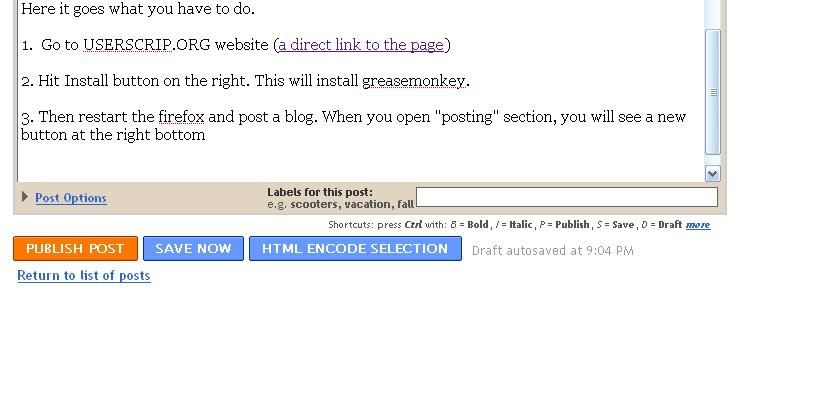
Here it goes what you have to do.

1. Go to USERSCRIP.ORG website (a direct link to the page)

2. Hit Install button on the right. This will install greasemonkey.

3. Then restart the firefox and post a blog. When you open "posting" section, you will see a new button at the right bottom as seen in the picture above.


Once you write code, go to edit html code, select the portion of the code you want as text and then hit HTML encode selection buttion

Eg.

<code><body>
<div id="'outer-wrapper'"><div id="'wrap2'">

<!-- skip links for text browsers -->
<span id="'skiplinks'" style="'display:none;'">
<a href="'#main'">skip to main </a> |
<a href="'#sidebar'">skip to sidebar</a>
</span></code>

Signature

Twit This!