Wednesday, June 17, 2009

How to change background color of blogger template?

How to change background color of blogger template?


Hi guys, you can easily change background color of blogger. For this you have to edit the blogger template.

Here are those easy steps -

1. Login to Blogger > Layout > Edit HTML

Now look for this

body {
background:$bgcolor;

You can find HTML color code value here

Say you have selected this color #ccccff

Now change the above code to

body {
background-color:#ccccff;

To change color of sidebar add the color code under the relevant sidebar heading

#sidebar-wrapper {
background-color:#ccccff;


Change background color of main post column

#main-wrapper {
background-color:#ccccff;

After desired changes save the template.

Signature

Twit This!

Wednesday, June 17, 2009

Use Full website for Blogging

Note: This post will be updated as we find something to share with you all. This is just the start. Thanks
-------------------------------------------------------------------------------------------------
Parse Google Adsense and anything else For XML Blogger, Copy and Paste your Google Adsense or other code to the textbox below

http://www.blogcrowds.com/resources/parse_html.php

Alternative site

Blogger Ad Code Converter

http://www.eblogtemplates.com/blogger-ad-code-converter/

Traffic Map
The Traffic Map widget places visitors to your site on a world map according to their physical location.

https://feedjit.com/pro/join/

Color Map Index

To change to various color for your blog, you can find the right color code here.


http://epages.page.tl/COLOR-VALUE.htm

Updated 6-29-2009


Google App website


http://www.google.com/support/a/bin/answer.py?hl=en&answer=48090

Signature

Twit This!

Live Traffic Feed

Traffic Map
The Traffic Map widget places visitors to your site on a world map according to their physical location.

How to Add a Feedjit Live Traffic Feed Button to Your Blogger Blog
1. Visit Feedjit

2. Click on the link to select Get a JS Widget

3. Select Live Traffic Feed.

4. Having sorted your color scheme right click the code in the box under the heading Live Traffic Feed and select copy.

5. Navigate to Layout > Page Elements in your blog

6. Select Add a Gadget in the Sidebar and then HTML/Javascript

7. Paste the code by placing the mouse in the box and right clicking and selecting paste

8. Save the widget and then using the drag and drop feature of Blogger move it to your desired location.

9. Save Template

10. Click on View Blog to view your newly created Feedjit widget

11. Click on Options in the Feedjit widget and then Ignore My Browser otherwise the widget will record your visit each time you view your blog. The option on the widget will now change to Stop Ignoring Me which you can reverse by clicking on the link again.If you use more than one browser you will need to tell Feedjit to ignore you for each browser.

Signature

Twit This!

How to place an ad below the tittle of the page.

I have always tried to maximize the way I can can make some penny as I have lost most of the $$$ in the stock market. So with the goal set in my mind, I am going to share what I have learned from other blogger on the net. There are few favorite of mine but I am trying to learn something from them and share with you all. That said, I keep this work as open source, and anyone can copy and published on their blog. No need to give credit to me. Give to those who deserve and I am definitely not the one.

So Here we go.

1. Assuming you all guys have adsense account and you can customize the ad size you want to display. I chose 336 by 280 size as it help the stand text. So lets keep the ball rolling.

2. You need to purse you code which you got through google adsense. You can do it from Here. Just paste it and hit the button. The code generated is what we need. Copy it and paste in notepad for record.

3. Navigate to Layout > Edit HTML

4.
Back up your Template (recommended) by downloading it to your computer

5. Check the Expand Widgets Template checkbox

6. Find <b:if cond='data:post.title'>

7. Few line below this you will find this whole text of code.

<b:if cond="'data:post.link'">
<a href="'data:post.link'"><data:post.title/></a>
<b:else/>
<b:if cond="'data:post.url'">
<a href="'data:post.url'"><data:post.title/></a>
<b:else/>
<data:post.title/>
</b:if>
</b:if>
</h3>
</b:if>
<p>
<!-- Start Google Ad-->
Place you ad Here
<!-- End Google Ad-->
</p>
<div class="'post-header-line-1'/">

Click the Save Template button

If you have Google Adsense ad units in other parts of your blog you will find that only 3 Google Adsense ad units will display on one page at any one time according to Adsense rules.

So go to the setup and change number of blog to 3 to appear on the page.

You are done and enjoy.

Signature

Twit This!

How to add image in the middle of post

How to add image in the middle of post?

There are ways to add image at tops of the post. Once I tried to post the image in the middle of the post. Since I was new at all this technology, I had to figure out how to post the image.

Here's one simple way.

If you have account at photobucket, flickr, etc, add the image there and copy the direct source like of the image. Once you have the link,

just put your link here.


<img src="http://server.com/photo.jpg" alt="Example" />

Signature

Twit This!

Add Google Adsense to Blogger Header

How To Add Google Adsense to the Header (Above the Title)
If you want to add Google Adsense to your header for instance above the title you can by adjusting your template to give you the option of adding more than one widget to the header area.

1. Login to Blogger and navigate to Layout > Edit HTML

2. Back up your template as a precaution by downloading the full template to your computer

3. Check the Expand Widgets Template box

4. Find the following code. Easiest way is to select CTRL + F to bring up the toolbar. Then enter <div id='header-wrapper'> into the find box:

<div id='header-wrapper'>
<b:section class='header' id='header' maxwidgets='1' showaddelement='yes'>
<b:widget id='Header1' locked='true' title='Blogger Tips (Header)' type='Header'/>
</b:section>
</div>

5. Replace maxwidgets='1' with maxwidgets='3' and replace showaddelement='no' with showaddelement='yes'

6. Save Template

7. Navigate to Layout > Page Elements and view the new option to add a gadget to the header area

8. Click on Add a Gadget and select Google Adsense.

9. Choose the type of ad unit you want. For this example I chose a new linked 728x15 ad unit from the dropdown format menu for an ad that would sit above the title. Configure colors if necessary. Color blending is usually done automatically by Blogger according to the color schema of your template.

10. Click Save

11. Click View Blog to see your new Google Adsense unit in place. all going well your new ad unit should appear.

If you want to place it below the header, just drag and drop below header.

Signature

Twit This!

How to Post HTML / CSS / JavaScript (and other) Code As Plain Text In Blogger (blogspot.com)

How to Post HTML / CSS / JavaScript (and other) Code As Plain Text In Blogger (blogspot.com) and make it with the click of a button?

I was trying to show some change in HTML code, I made in my template the other day. When I tried to post the same information to share with other, I found out that the code are gone and can not be published as such.

So I spend some 1 hour digging on google to how to fix this. Fortunately I use firefox and I found a tool which can be implemented and it safe. After Installing this tool, it becomes very easy to post HTML/XML code in the blogpost etc.

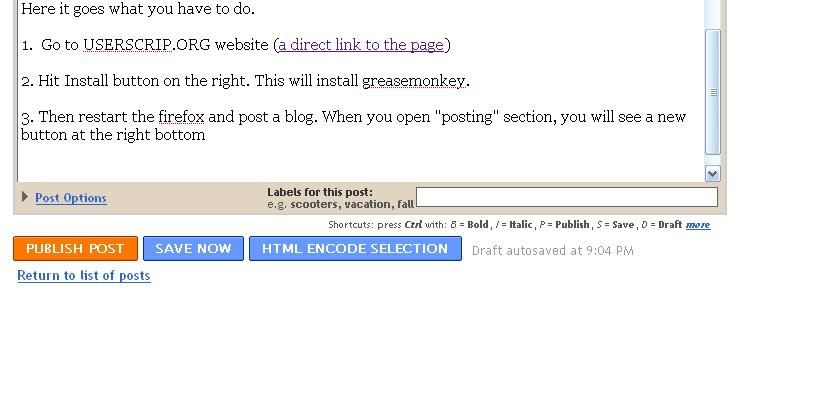
Here it goes what you have to do.

1. Go to USERSCRIP.ORG website (a direct link to the page)

2. Hit Install button on the right. This will install greasemonkey.

3. Then restart the firefox and post a blog. When you open "posting" section, you will see a new button at the right bottom as seen in the picture above.


Once you write code, go to edit html code, select the portion of the code you want as text and then hit HTML encode selection buttion

Eg.

<code><body>
<div id="'outer-wrapper'"><div id="'wrap2'">

<!-- skip links for text browsers -->
<span id="'skiplinks'" style="'display:none;'">
<a href="'#main'">skip to main </a> |
<a href="'#sidebar'">skip to sidebar</a>
</span></code>

Signature

Twit This!